Last updated: October 29, 2026
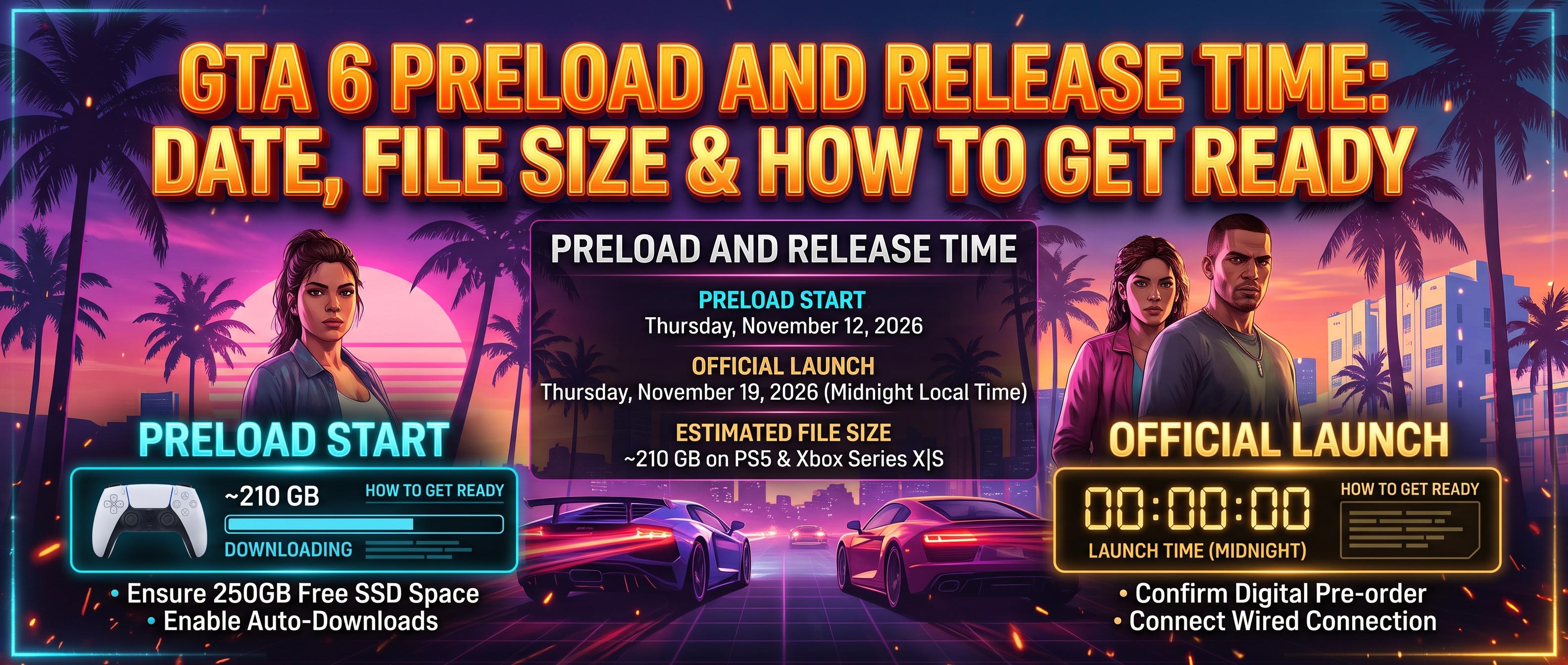
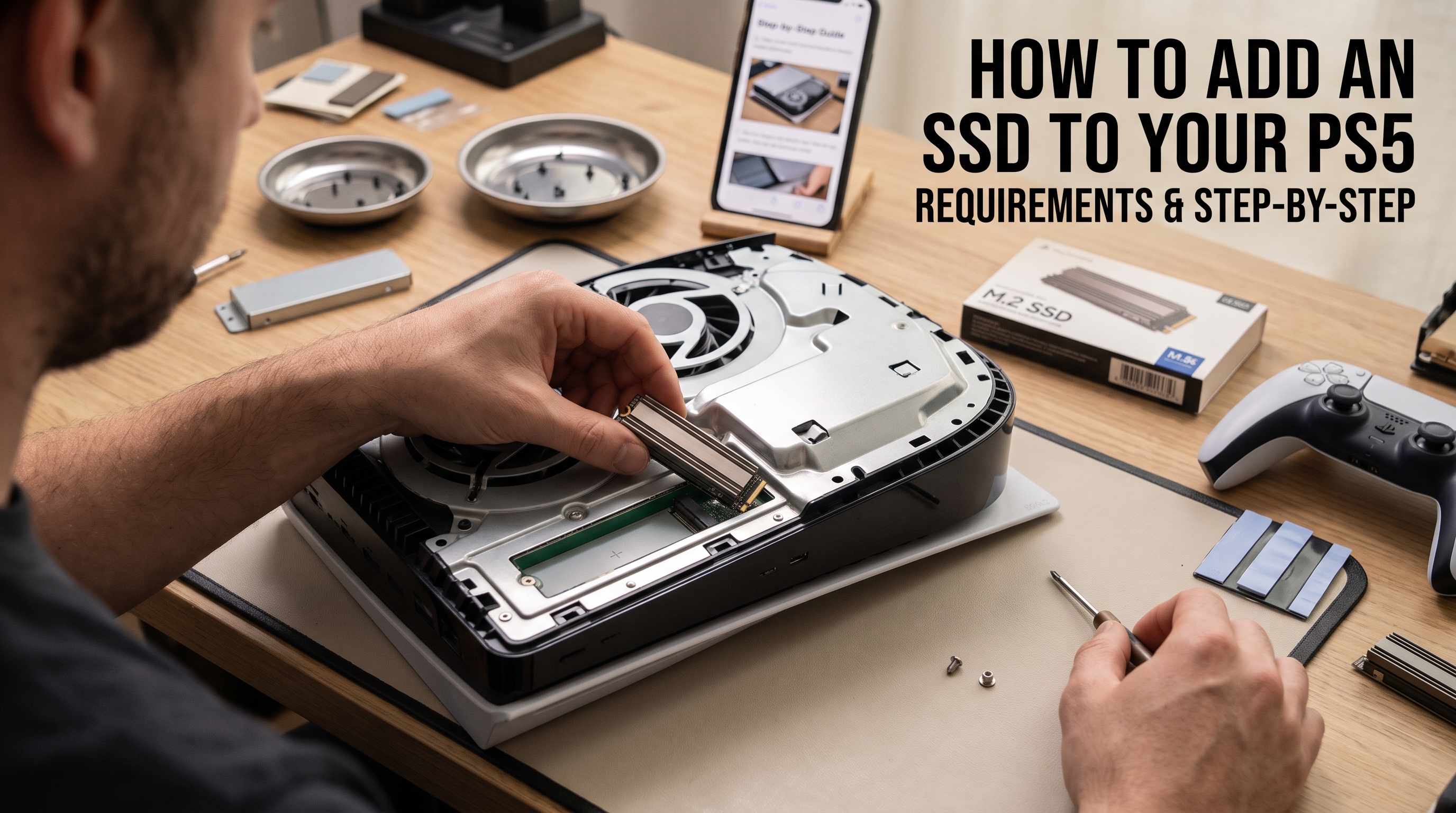
PS5 games keep getting bigger, and with GTA 6 reported at around 210 GB, many players are running out of room. The good news: every PS5 model has a free M.2 slot for an extra SSD, and installing one takes about 15 minutes with a single screwdriver.
What SSD do you need for a PS5?
Sony's requirements for the expansion slot are:
| Requirement | Spec |
|---|---|
| Interface | PCIe Gen4 x4 M.2 NVMe |
| Capacity | 250 GB to 8 TB |
| Recommended read speed | 5,500 MB/s or faster |
| Supported sizes | 2230, 2242, 2260, 2280 and 22110 |
| Max size with heatsink | 110 mm long, 25 mm wide, 11.25 mm tall |
| Cooling | Heatsink or heat-dissipating cover required |
The most important points:
- It must be PCIe Gen4. Gen3 drives will not work for PS5 games.
- It needs cooling. Buy a drive with a built-in heatsink, or add a thin heatsink yourself.
- 2280 is the most common size, and almost every popular gaming SSD uses it.
How much storage should you buy?
- 1 TB: enough for 4–6 big modern games. A good minimum today.
- 2 TB: the sweet spot for most players. Usually the best price per gigabyte.
- 4 TB: for players who never want to delete anything.
Compare prices during Black Friday (November 27, 2026). SSDs are one of the most consistently discounted gaming accessories.
What you need before you start
- The SSD (with heatsink)
- A #1 Phillips screwdriver
- A clean, flat surface with good light
- Your PS5 updated to the latest system software
How to install an SSD in a PS5 (step by step)
- Turn off the PS5 completely (not Rest Mode) and unplug every cable. Let it cool for a few minutes.
- Remove the cover. On the original PS5, lift and slide the white side panel. On PS5 Slim and PS5 Pro, remove the top cover by sliding it off as shown in Sony's official guide for your model.
- Find the expansion slot cover, a small metal plate held by one screw. Remove the screw and the plate.
- Remove the spacer screw inside the slot and move the spacer to the hole that matches your SSD length (80 mm for a 2280 drive).
- Insert the SSD at a slight angle into the connector, then press it down gently.
- Secure it with the spacer screw.
- Put the metal cover and the console cover back on, reconnect your cables and turn on the PS5.
- Format the drive. The PS5 will prompt you automatically. Follow the steps, and the console will run a quick speed test.
How to move games to the new SSD
- Go to Settings > Storage > M.2 SSD Storage to see the new drive.
- To move existing games, go to Settings > Storage > Console Storage > Games and Apps, select the games and choose Move.
- To make new downloads go straight to the SSD, set Installation Location to M.2 SSD Storage.
Can you use an external USB drive instead?
Yes, but only partly. A USB drive can store PS5 games and play PS4 games, but PS5 games must be moved back to internal or M.2 storage to play. An external drive is great for "parking" games you are not playing right now; an M.2 SSD is the only way to actually expand where you play PS5 games from.
Common problems
- The PS5 does not detect the drive: remove and reseat it, and make sure it is pushed fully into the connector.
- "This M.2 SSD is not supported": it is probably a Gen3 drive.
- Slow transfer speeds: check that the drive meets the 5,500 MB/s recommendation.
Bottom line
Buy a PCIe Gen4 M.2 SSD with a heatsink, ideally 2 TB, install it in the expansion slot in about 15 minutes, and set it as your default install location. It is the easiest way to make room for GTA 6 and every big game after it.