Last updated: October 29, 2026
Modern games are huge. A 100–200 GB download can take minutes or an entire day depending on how your console is connected. Before you blame your internet provider, try these fixes, ordered from easiest to most technical.
First: test your real speed
On PS5, go to Settings > Network > Connection Status > Test Internet Connection. On Xbox, go to Settings > General > Network settings > Test network speed & statistics.
Compare the result with the speed you pay for. If the console gets far less than your plan, the problem is almost always the connection between the console and your router, and the fixes below will help.
1. Use an Ethernet cable
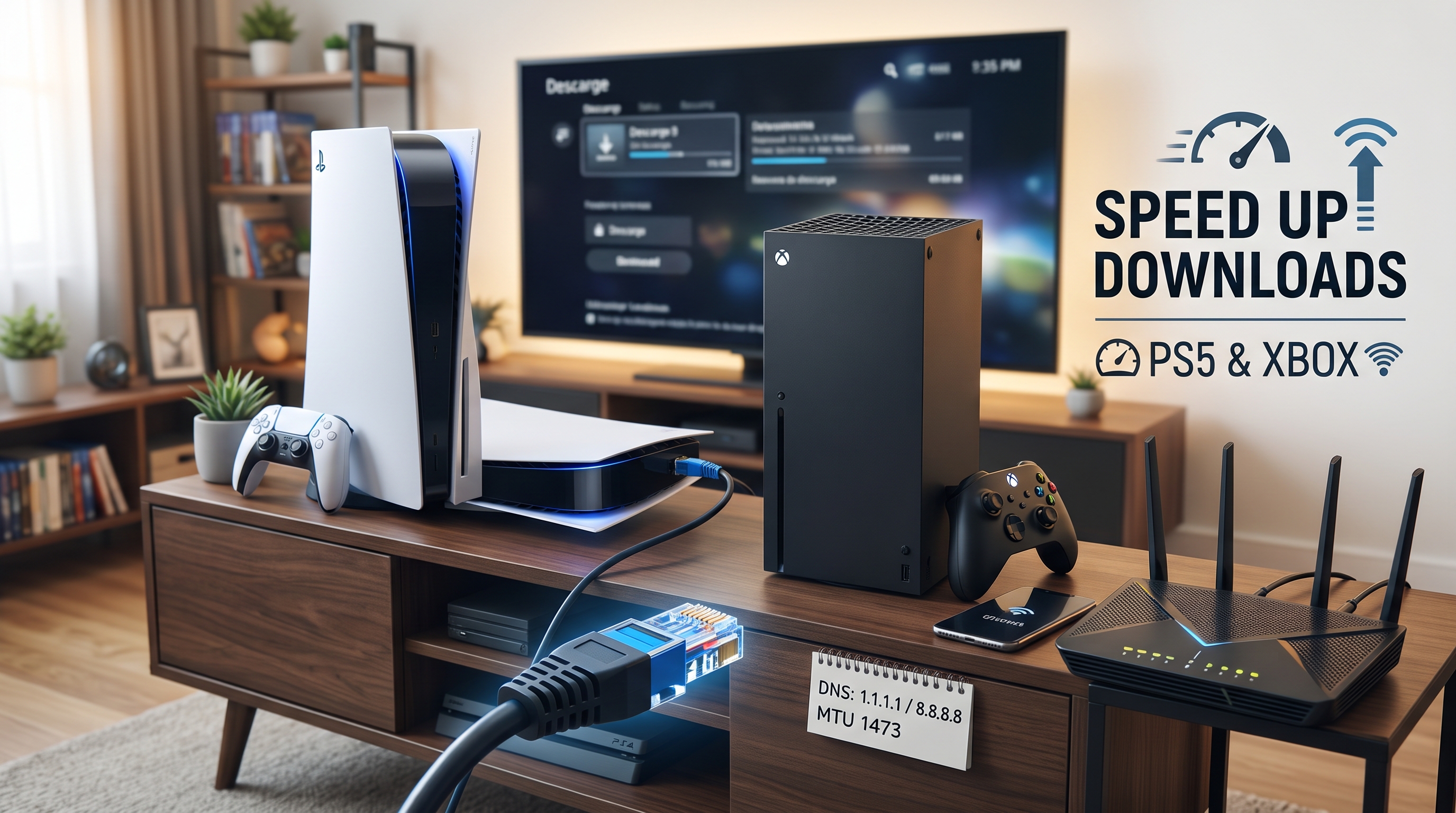
This is the single biggest improvement. Wi-Fi speeds drop with distance, walls and interference from other devices. A wired connection gives your console your full internet speed and a stable connection. Even a long, cheap cable usually beats Wi-Fi.
2. Move the router or console (if you must use Wi-Fi)
- Keep the console and router in the same room if possible.
- Get the router off the floor and away from TVs, microwaves and metal furniture.
- Do not hide the console inside a closed TV cabinet.
3. Use the 5 GHz or 6 GHz Wi-Fi band
Most modern routers broadcast several bands. 5 GHz (or 6 GHz on Wi-Fi 6E routers) is much faster at close range than 2.4 GHz. If your router shows separate network names, connect the console to the 5 GHz one.
4. Pause other downloads and streams
Everything on your network shares the same bandwidth. Pause downloads on your PC, stop 4K streaming on other TVs, and pause cloud backups while a big game downloads.
5. Download in Rest Mode or Sleep Mode
Consoles download faster when they are not running a game.
- PS5: Settings > System > Power Saving > Features Available in Rest Mode and turn on Stay Connected to the Internet. Then put the console in Rest Mode.
- Xbox: Settings > General > Power options and choose Sleep. Downloads continue while the console is in Sleep.
6. Pause and resume the download
It sounds too simple, but pausing and resuming a slow download often reconnects you to a faster server. Give it 10–20 seconds before resuming.
7. Restart your router and console
Turn off the console and unplug the router for 30 seconds. Restarting clears temporary issues and is especially useful if speeds suddenly drop.
8. Change your DNS settings
Switching to a public DNS can sometimes improve connection reliability.
- PS5: Settings > Network > Settings > Set Up Internet Connection, select your network, choose Advanced Settings, set DNS to Manual and enter
1.1.1.1and1.0.0.1(Cloudflare) or8.8.8.8and8.8.4.4(Google). - Xbox: Settings > General > Network settings > Advanced settings > DNS settings > Manual.
DNS will not raise your maximum speed, but it can fix connection hiccups.
9. Avoid launch-night traffic
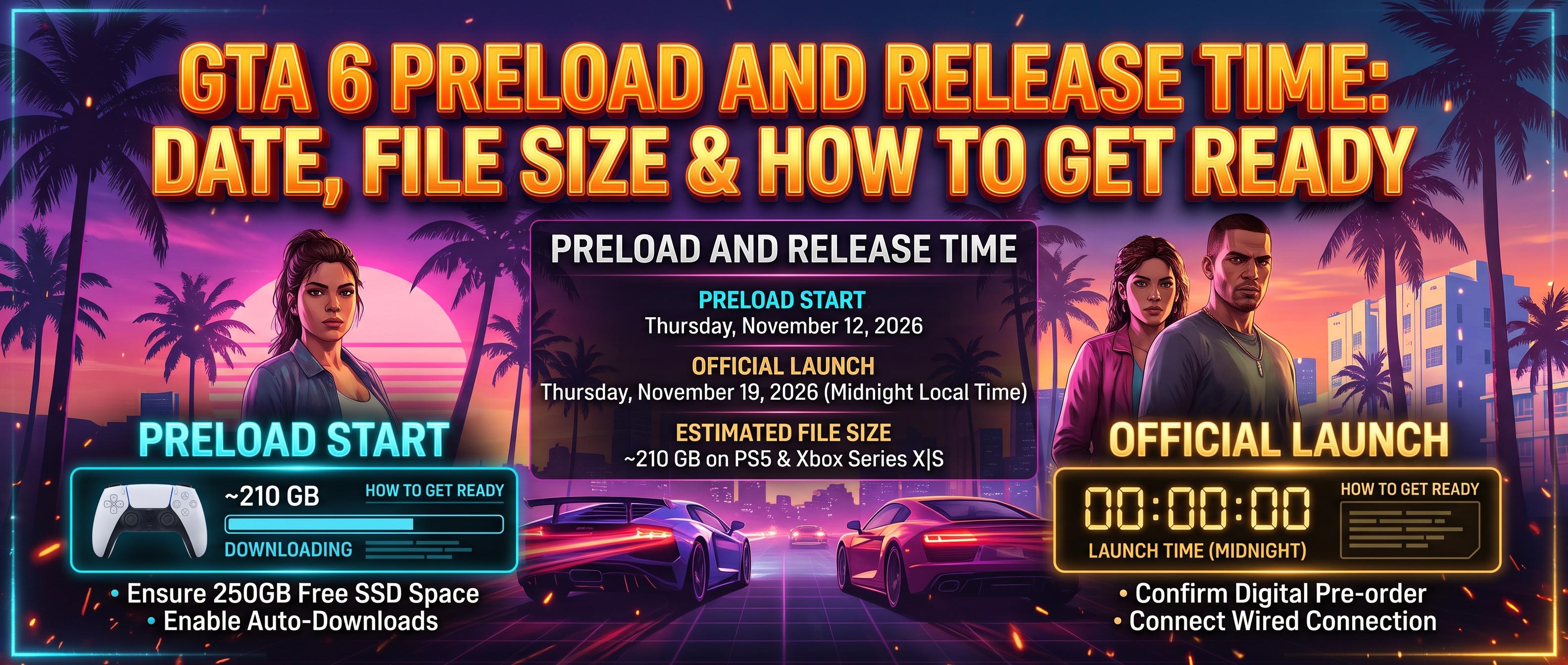
When a massive game launches, servers are overloaded and everyone's downloads slow down. That is why preloading matters. For GTA 6, preload opens on November 12, 2026, a full week before launch. Start then and let the console finish overnight.
How long will a 200 GB download take?
| Real speed | Approximate time |
|---|---|
| 50 Mbps | About 9 hours |
| 100 Mbps | About 4.5 hours |
| 300 Mbps | About 1.5 hours |
| 1 Gbps | About 27 minutes |
Bottom line
The biggest wins are free: use a wired connection, download in Rest Mode or Sleep, and pause everything else on your network. Start big downloads early, especially for major launches, and you will spend more time playing and less time watching a progress bar.