Last updated: October 29, 2026
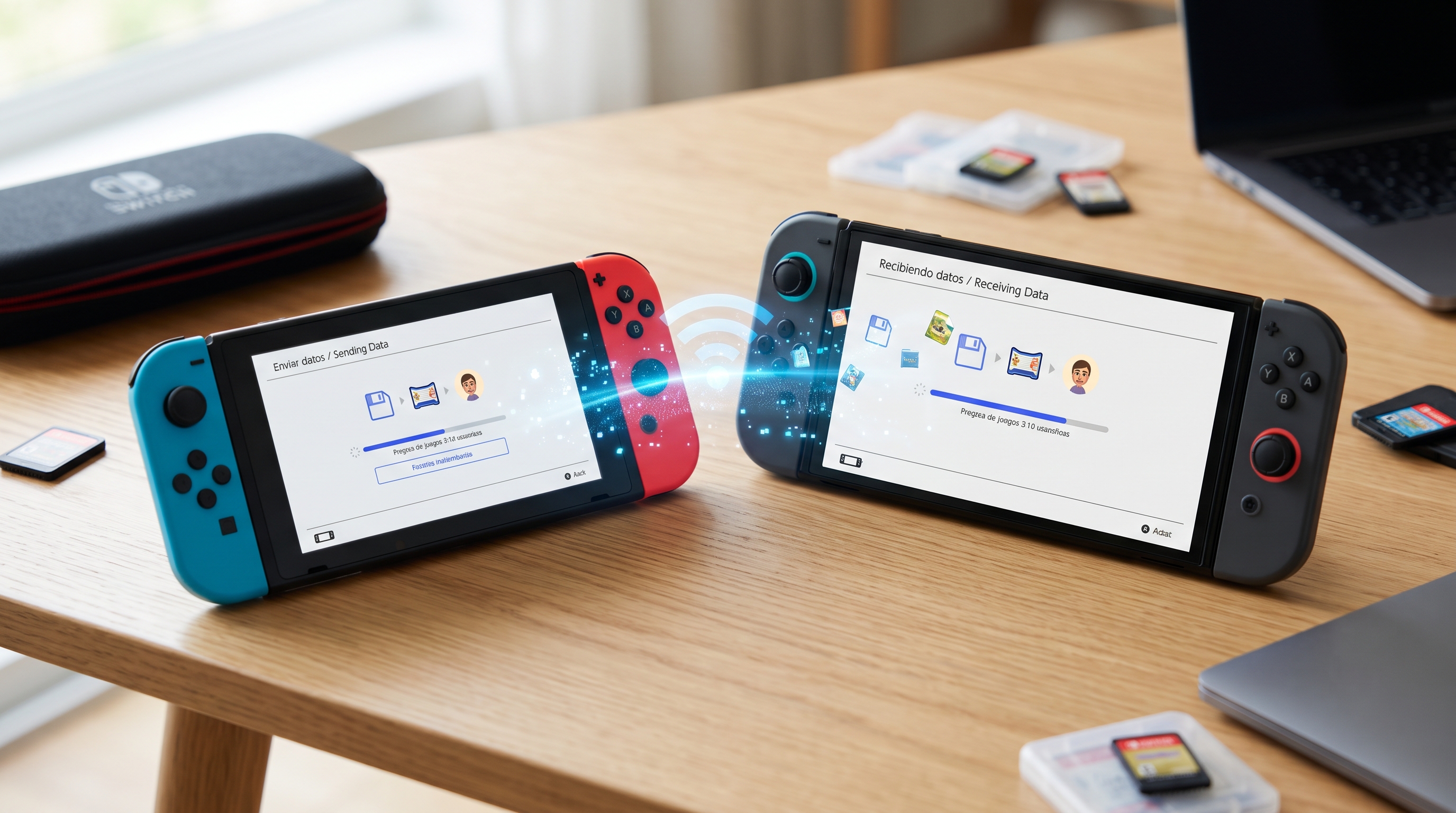
Getting a Nintendo Switch 2 this holiday season? You do not have to start over. Nintendo lets you move your user profiles, save data and game library from your original Switch to the new console. This guide covers both ways to do it and the mistakes to avoid.
Before you start: checklist
- Update both consoles to the latest system software.
- Link each user to a Nintendo Account on the old Switch (System Settings > Users). Your digital games are tied to that account.
- Charge both consoles or keep them plugged in.
- Connect both to the internet.
- Know which method you want (see below).
The two transfer methods
| Method | When to use it | Old Switch needed afterward? |
|---|---|---|
| Local transfer | You have both consoles with you | Yes, it must be nearby during transfer |
| Server transfer | You are giving away or selling the old Switch first | No, data is uploaded and downloaded later |
Method 1: Local transfer (both consoles together)
This is the simplest option if you have both consoles in the same room.
- Turn on the Switch 2 and start the initial setup.
- When asked, choose the option to transfer data from a Nintendo Switch.
- On the old Switch, follow the on-screen instructions shown by the Switch 2 (usually under System Settings > System).
- Keep the consoles close together and connected to the same network.
- Wait for the transfer to finish. Your users, save data and settings move across, and your digital games become available to download on the new console.
Method 2: Server transfer (old Switch not available later)
Use this if you want to pass your old Switch to someone else before your Switch 2 arrives.
- On the old Switch, use the system transfer option to upload your data to Nintendo's servers.
- Later, set up the Switch 2 with the same Nintendo Account.
- During setup, choose to download the transferred data from the server.
Important: after a server transfer, the data on the old console may be deleted or reset, so do not use this method if you still want to play on your old Switch.
What transfers and what does not
Transfers:
- User profiles and linked Nintendo Accounts
- Save data for most games
- Your digital game library (re-downloaded from the eShop)
- Screenshots and videos (when included in the transfer)
Does not transfer automatically:
- Physical games: just insert the cartridges in the Switch 2
- Data stored on a microSD card that is not compatible with Switch 2. Switch 2 uses microSD Express cards for storing Switch 2 games, so older microSD cards cannot hold Switch 2 games.
- A few games that do not allow save transfers. Check those games' official pages.
Do you need Nintendo Switch Online?
Not for the system transfer itself. But Save Data Cloud, which is included with Nintendo Switch Online, is a great backup. If you subscribe, your saves are already backed up in the cloud before you start, so nothing is lost if a transfer goes wrong.
Common problems
- Transfer will not start: make sure both consoles are on the latest update and connected to the same network.
- Games show as "unavailable": sign in with the same Nintendo Account used to buy them, then re-download them from the eShop.
- Missing saves for one game: that game may not support save transfers. Look for an in-game transfer option or cloud saves.
Bottom line
If you have both consoles together, use the local transfer during the Switch 2 setup. If the old Switch is leaving before the new one arrives, use the server transfer. Either way, link every user to a Nintendo Account first and your progress will follow you to Switch 2.